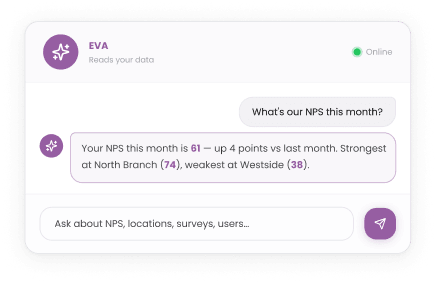
Your whole operation, one question away

This changes how your teams get answers. With the new Serve First MCP connector, anyone with a Serve First login can ask their AI assistant for their numbers, from NPS to audit results, and get the answer straight from live Serve First data. They get quick answers in the tools they already have open, and when they want the full picture, EVA and your Serve First dashboards take them deeper.
Picture Monday morning. An operations director on the train asks: "Tell me about our NPS this month, and which audit topics are failing most." The answer comes back from live Serve First data, covering only the data they're allowed to see. By the time the train pulls in, they know exactly where to start the week. When they want to understand a number more deeply, they go straight into their Serve First dashboards.
That's the shift. Quick answers wherever your people already work, with Serve First behind every one.
One connection brings ratings, NPS, Audits, Mystery visits, Helpdesk and training into the AI tools your people already use. It uses the same Serve First tools as EVA, and your people can drop the answers straight into the reports, emails and board packs they're already working on.
And this is only version 1. Next, your teams will be able to act on what they find, straight from their AI assistant. Here's why it's a big deal, what MCP is, and how to start using it.
Why this is a big deal
Your data, wherever the work happens. If your teams already plan, write and report with an AI assistant, Serve First is now right there with them, so the numbers arrive where the decisions get made.
Answers on demand, not reports on request. Leaders get the number they need when they need it, without waiting for someone to pull a report.
More people use your data. Senior leaders and occasional users can now ask a question in a tool they open every day, and head into Serve First when they want to go further. Your customer and operational data gets used, not just collected.
One version of the truth. Every figure comes from Serve First, the same source your dashboards use. No spreadsheets passed around. No numbers retyped by hand.
A quick way in, a deeper view inside. Quick questions get answered where you work. When you need the reason behind a number, EVA and your Serve First dashboards take you further.
What is MCP?
MCP stands for Model Context Protocol. It's an open standard that lets an AI assistant, such as Microsoft Copilot, ChatGPT or Claude, connect to another piece of software and use the tools that software makes available.
We built the Serve First MCP so that AI tools that support the standard can read and use your Serve First data, in plain English, inside the assistant your team already uses.
It works today with Microsoft Copilot, ChatGPT and Claude, and with other AI assistants that support MCP connectors.
For an operations team, the point is simple. MCP lets the AI tools your people already trust answer questions with your own business data, not general knowledge from the internet.
How does MCP work?

An MCP connection has three parts:
- The AI client. The assistant your team uses, such as Microsoft Copilot, ChatGPT or Claude.
- The MCP server. The connection a software provider publishes. Ours lives at mcp.servefirst.ai.
- Tools. The specific, approved actions the server offers. For Serve First, that means reading figures such as ratings, audit scores and help desk response times.
How Serve First uses MCP
The Serve First MCP connector links your AI assistant to the operational data you already capture with us. Customer ratings, surveys, audits, mystery visits, help desk and training all sit behind one connection.
That's what sets it apart. It isn't only survey results. It gives your AI assistant a single view of your operation, from what customers say to what auditors find to how fast your team responds.
Set up the MCP connector in five steps
- Serve First Support switches on external AI access for your company. Switching it on records that your company has agreed to share data with an outside AI provider.
- Add Serve First as a connector in your AI assistant using the address mcp.servefirst.ai/mcp. That means your Claude connectors, ChatGPT connectors or Copilot connectors, depending on the tool you use. In Claude, you'll find your connectors under Customize.
- Sign in with your Serve First login if you're asked. If you're already signed in, you go straight to the next step.
- Click Allow. This tells your AI assistant who you are, so you only see the data you're allowed to see.
- Start asking questions. If you can see more than one company, ask "Which companies can I see in Serve First?" and then name the one you want.
Quick answers in your tools. The full story in Serve First.
The MCP connection is the fast route to your numbers: ask your AI assistant and get the figure you need. EVA lives inside Serve First and knows your operation in depth. She sees the dashboard you're on, draws on your own Knowledge Base, and can take the next step with you.
Think of it this way. Your AI assistant is a brilliant generalist. It reads your Serve First figures alongside everything else it knows. EVA is a specialist in one thing: your Serve First operation. She works inside your dashboards, draws on your Knowledge Base, and gives you answers with more context and more depth.
Both use the same tools and the same permissions, so the figures match wherever you ask. Reach for MCP when you need a quick answer, and for EVA when you want the context behind it.
What you can ask
The connection reads the same figures you see on your Serve First dashboards. Ask for the figures you need. Name the area and the period, and your AI assistant does the rest.

- Company overview: How the areas you can see are performing overall
- Customer ratings: Your customer ratings
- Audits: Your audit results
- Mystery visits: Your mystery visit results
- Surveys: Survey summaries
- Help desk: Help desk summaries and response times
- Learning & Development: Training reports
- Locations: Your locations, location groups and reporting periods, so you can ask by name
Get sharper answers
- Name the place. Use your own location and region names: "our five London stores", "the North region".
- Name the period. "This month", "last quarter", "Wave 5" or "the last six months".
- Ask for a comparison. "Compared with last month" turns a number into a story.
- Ask for the format you need. "As a table", "as three bullet points for a slide" or "as a short email to my area managers".
How teams use it
MCP is built for people who want answers fast, wherever they're working: senior leaders, regional managers and anyone pulling a report together. Here's how to use it for the jobs they do every week.
- Know where you stand before your first meeting
Ask: “Tell me about our NPS this month.”
You get: Your current NPS and how it’s moving. - See whether customers are happier
Ask: “How has my NPS changed over the last three months?”
You get: Your NPS trend, month by month. - Spot the locations that need you most
Ask: “Which five locations had the lowest customer ratings last month, and what changed?”
You get: A ranked list with the month-on-month movement, ready for Monday’s call. - See which sites are pulling a region down
Ask: “Compare NPS across the West region for the last six months and highlight the outliers.”
You get: The regional trend and the sites behind it. - Get ahead of a compliance issue
Ask: “Which topics fail most on our audits?”
You get: The audit topics to fix first. - Check your team’s responsiveness
Ask: “Summarize help desk response times for the North region this quarter.”
You get: Average response and resolution times, and the direction of travel. - Track training readiness
Ask: “How many people have completed the food safety course, by location?”
You get: Completion by location, ready to share with area managers. - Prepare for the board
Ask: “How did we perform this quarter compared with last?”
You get: One overview across feedback, audits and mystery visits. - Look across your brands
Ask: “Which companies can I see in Serve First?”
You get: Every company you have access to, so you can pick one and ask about it.
Where it really pays off
The biggest gain comes when Serve First figures meet the rest of your work. Your AI assistant can take the numbers and, in the same conversation:
- drop this month's figures into the operations report you already send
- draft the weekly update to your regional managers
- turn the quarter's results into talking points for a board meeting
- write a briefing before a site visit, built on that location's audit and rating trends
The figures come from Serve First. The writing, the summary and the next draft come from the AI tool your team already knows.
Built to keep you in control
- You decide when it's on. External AI access is enabled company by company, with a record of your agreement.
- Your normal sign-in. Users connect with their own Serve First login.
- Permissions follow the person. Your AI assistant knows who signed in, so people only see the data they're allowed to see, the same as in Serve First.
- Nothing to install. Your teams add one connector to the AI tool they already use.
- Easy to manage. Disconnect at any time from the connectors in your AI assistant. In Claude, it's one click under Customize.
Frequently asked questions
What does MCP stand for?
Model Context Protocol. It's an open standard that lets AI assistants connect to other software and use the tools it offers.
Which AI tools can I connect to Serve First?
Microsoft Copilot, ChatGPT and Claude today, plus other AI assistants that support MCP connectors. You add the Serve First MCP connector to your Copilot, ChatGPT or Claude connectors.
Is my data safe?
Yes. The connection is off until your company switches it on. To connect, users sign in with their Serve First login and click Allow. That tells the AI assistant who they are, so they only see the data they're allowed to see.
What kind of questions work best?
Anything you'd ask EVA: your NPS, the audit topics that fail most, how a region is trending, how this quarter compares with last. Name the area, the period and the comparison you want.
What's coming next?
This is version 1. Soon your teams will be able to take action from their AI assistant, not just ask questions. We'll share each update as it's ready.
How is MCP different from EVA?
EVA is the expert inside Serve First. She knows your operation in depth, uses your Knowledge Base and the page you're on, and can act with you. MCP is the quick route to your figures from the AI assistant you already use. Use MCP for a fast answer, and EVA for the full picture.
MCP vs API: what's the difference?
An API is how two pieces of software talk to each other: a developer writes code against it, one integration at a time. MCP is a standard built for AI assistants. It lets your AI assistant find the tools a system offers and use them without custom code. Our MCP server works through Serve First's existing APIs, so your AI assistant reaches the same data, in plain English.
How do I switch it on?
Contact Serve First Support to switch on external AI access for your company. Then add the connector in your AI assistant, sign in and click Allow.
Put your operations data where the questions get asked
Your teams already turn to AI for answers. With the Serve First MCP connector, those answers come from your own customer feedback, audits, mystery visits, help desk and training data, with your permissions intact.
Ask the question. Get the number. Act on it the same day.
See it in action. Talk to us about switching on MCP for your company, or get a demo.